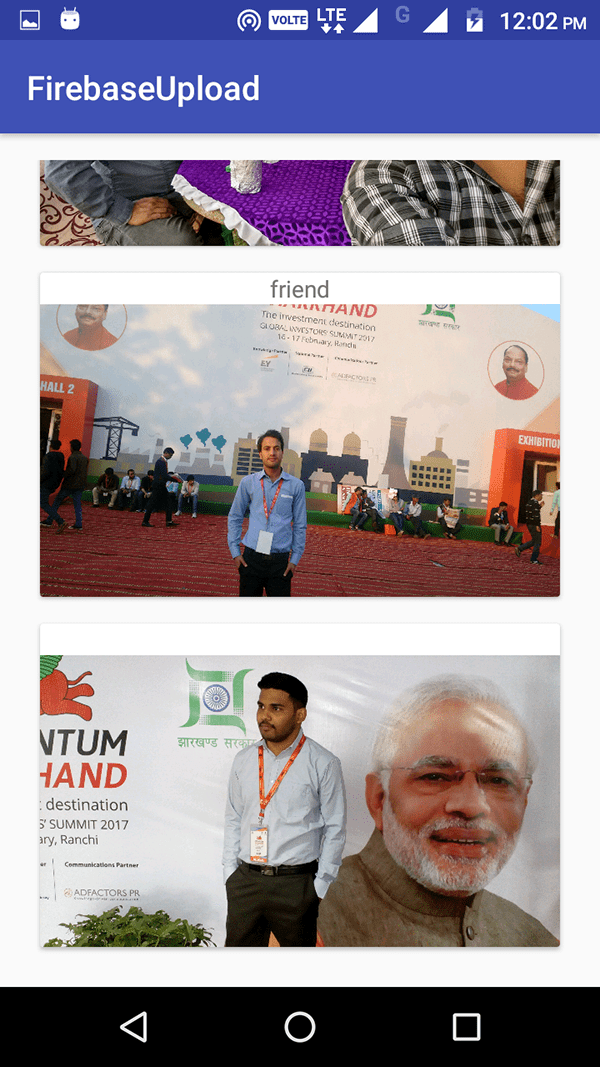
33. Upload Images To Firebase Storage
33.1. Creating a new Project
- As always the first step is creating a new Android Studio Project.
- So just create a new Android Studio project using an Empty Activity.
- I created a project named FirebaseStorage.
- Once your project is loaded, you can add Firebase storage to it.
33.2. Adding FirebaseStorage
- With new Android 2.2 it is really easy to integrate firebase. (If you haven’t updated your studio, you should update your Android Studio).
- To add Firebase Storage, click on Tools -> Firebase
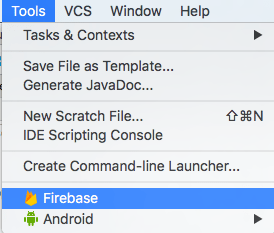
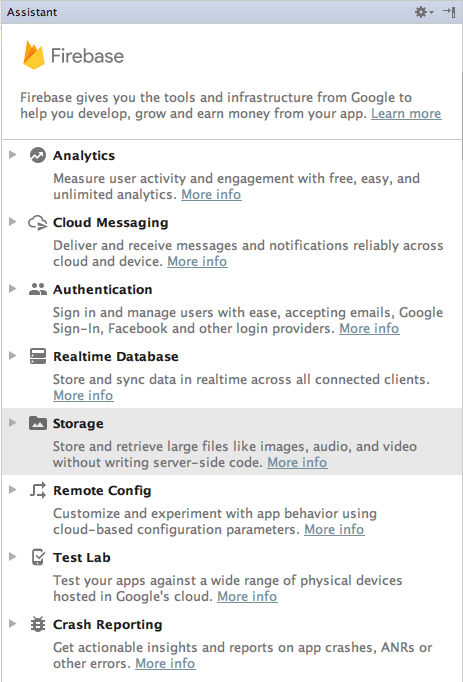
- An assistant window would open in left with all the firebase features. We have to select Firebase Storage from the list.
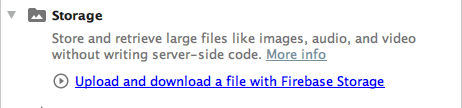
- Now you will see a link saying Upload and Download a File with Firebase Storage click on it.
Now you will see again the same screen we seen in the last Firebase Cloud Messaging Tutorial. You have to do the same things.
33.3. Connect your app to firebase
Click on Connect to Firebase. You will see a dialog asking to create a new firebase app or choose an existing one.
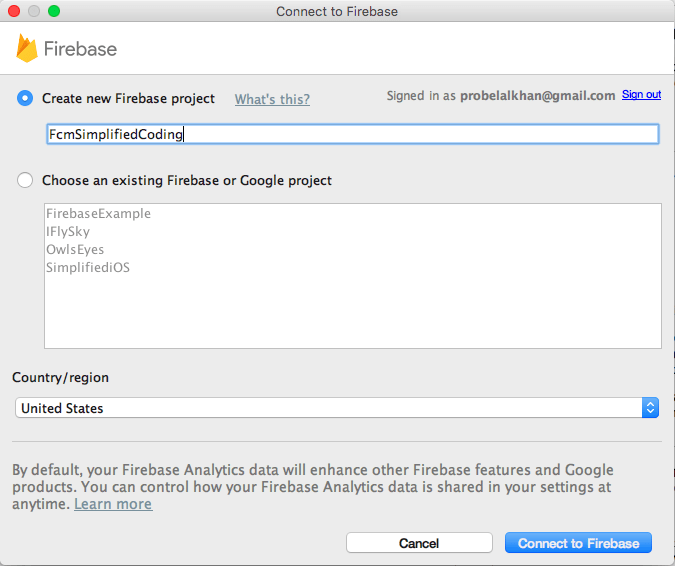
33.4. Adding Firebase Storage
Now Click on the second button Add Firebase Storage to Your App.
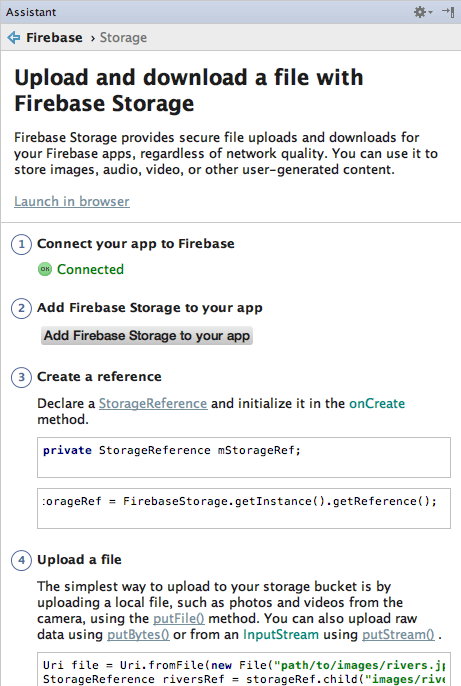
- Then click on accept changes and firebase storage is added.

33.5. Getting a File to Upload
- If we need to upload a file, then the first step is getting that file.
- For this we will create a File Chooser.
33.6. Creating File Chooser
- First we will create layout for our file chooser.
33.7. Creating Layout
- Come inside activity_main.xml and write the following code.
<?xml version="1.0" encoding="utf-8"?>
<RelativeLayout xmlns:android="http://schemas.android.com/apk/res/android"
    xmlns:tools="http://schemas.android.com/tools"
    android:id="@+id/activity_main"
    android:layout_width="match_parent"
    android:layout_height="match_parent"
    android:paddingBottom="@dimen/activity_vertical_margin"
    android:paddingLeft="@dimen/activity_horizontal_margin"
    android:paddingRight="@dimen/activity_horizontal_margin"
    android:paddingTop="@dimen/activity_vertical_margin"
    tools:context="net.simplifiedcoding.firebasestorage.MainActivity">

    <LinearLayout
        android:id="@+id/linearLayout"
        android:layout_width="match_parent"
        android:layout_height="wrap_content"
        android:orientation="horizontal">

        <Button
            android:id="@+id/buttonChoose"
            android:layout_width="wrap_content"
            android:layout_height="wrap_content"
            android:layout_weight="1"
            android:text="Choose" />

        <Button
            android:id="@+id/buttonUpload"
            android:layout_width="wrap_content"
            android:layout_height="wrap_content"
            android:layout_weight="1"
            android:text="Upload" />

    </LinearLayout>

    <ImageView
        android:id="@+id/imageView"
        android:layout_width="match_parent"
        android:layout_height="match_parent"
        android:layout_below="@id/linearLayout" />

</RelativeLayout>
- The above xml code will generate the following layout.

- Now we will code the functionality to the choose button. When we tap the choose button Image Chooser should open. So lets do it.
33.8. Coding File Chooser
Come inside MainActivity.java, and write the following code.
package net.simplifiedcoding.firebasestorage;

import android.content.Intent;
import android.graphics.Bitmap;
import android.net.Uri;
import android.provider.MediaStore;
import android.support.v7.app.AppCompatActivity;
import android.os.Bundle;
import android.view.View;
import android.widget.Button;
import android.widget.ImageView;

import java.io.IOException;

public class MainActivity extends AppCompatActivity implements View.OnClickListener /*  implementing click listener */ {
    //a constant to track the file chooser intent
    private static final int PICK_IMAGE_REQUEST = 234;

    //Buttons
    private Button buttonChoose;
    private Button buttonUpload;

    //ImageView
    private ImageView imageView;

    //a Uri object to store file path
    private Uri filePath;

    @Override
    protected void onCreate(Bundle savedInstanceState) {
        super.onCreate(savedInstanceState);
        setContentView(R.layout.activity_main);

        //getting views from layout
        buttonChoose = (Button) findViewById(R.id.buttonChoose);
        buttonUpload = (Button) findViewById(R.id.buttonUpload);

        imageView = (ImageView) findViewById(R.id.imageView);

        //attaching listener
        buttonChoose.setOnClickListener(this);
        buttonUpload.setOnClickListener(this);
    }

    //method to show file chooser
    private void showFileChooser() {
        Intent intent = new Intent();
        intent.setType("image/*");
        intent.setAction(Intent.ACTION_GET_CONTENT);
        startActivityForResult(Intent.createChooser(intent, "Select Picture"), PICK_IMAGE_REQUEST);
    }

    //handling the image chooser activity result
    @Override
    protected void onActivityResult(int requestCode, int resultCode, Intent data) {
        super.onActivityResult(requestCode, resultCode, data);
        if (requestCode == PICK_IMAGE_REQUEST && resultCode == RESULT_OK && data != null && data.getData() != null) {
            filePath = data.getData();
            try {
                Bitmap bitmap = MediaStore.Images.Media.getBitmap(getContentResolver(), filePath);
                imageView.setImageBitmap(bitmap);

            } catch (IOException e) {
                e.printStackTrace();
            }
        }
    }

    @Override
    public void onClick(View view) {
        //if the clicked button is choose
        if (view == buttonChoose) {
            showFileChooser();
        }
        //if the clicked button is upload
        else if (view == buttonUpload) {

        }
    }
}
33.9. Testing File Chooser
Now you can run your application to check whether the file chooser is working or not.
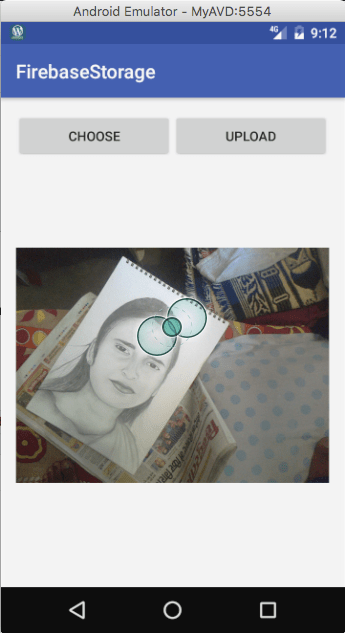 a8
a8
As you can see it is working absolutely fine. So now we can move ahead to learn the main topic of this Firebase Storage Tutorial, which is uploading a file.
33.10. Uploading Selected Image
- We have the chosen image. Now when the user will tap the upload button the file should be uploaded to Firebase Storage.
33.11. Coding Upload Method
- So inside MainActivity class create a method named uploadFile() and write the following code for it.
//this method will upload the file
    private void uploadFile() {
        //if there is a file to upload
        if (filePath != null) {
            //displaying a progress dialog while upload is going on
            final ProgressDialog progressDialog = new ProgressDialog(this);
            progressDialog.setTitle("Uploading");
            progressDialog.show();

            StorageReference riversRef = storageReference.child("images/pic.jpg");
            riversRef.putFile(filePath)
                    .addOnSuccessListener(new OnSuccessListener<UploadTask.TaskSnapshot>() {
                        @Override
                        public void onSuccess(UploadTask.TaskSnapshot taskSnapshot) {
                            //if the upload is successfull
                            //hiding the progress dialog
                            progressDialog.dismiss();

                            //and displaying a success toast
                            Toast.makeText(getApplicationContext(), "File Uploaded ", Toast.LENGTH_LONG).show();
                        }
                    })
                    .addOnFailureListener(new OnFailureListener() {
                        @Override
                        public void onFailure(@NonNull Exception exception) {
                            //if the upload is not successfull
                            //hiding the progress dialog
                            progressDialog.dismiss();

                            //and displaying error message
                            Toast.makeText(getApplicationContext(), exception.getMessage(), Toast.LENGTH_LONG).show();
                        }
                    })
                    .addOnProgressListener(new OnProgressListener<UploadTask.TaskSnapshot>() {
                        @Override
                        public void onProgress(UploadTask.TaskSnapshot taskSnapshot) {
                            //calculating progress percentage
                            double progress = (100.0 * taskSnapshot.getBytesTransferred()) / taskSnapshot.getTotalByteCount();

                            //displaying percentage in progress dialog
                            progressDialog.setMessage("Uploaded " + ((int) progress) + "%...");
                        }
                    });
        }
        //if there is not any file
        else {
            //you can display an error toast
        }
    }
- Now call this method when the button upload is clicked.
@Override
    public void onClick(View view) {
        //if the clicked button is choose
        if (view == buttonChoose) {
            showFileChooser();
        }
        //if the clicked button is upload
        else if (view == buttonUpload) {
            uploadFile();
        }
    }
- If you will try running the application it will not work, because of the default Storage Rules.
33.12. Changing the Default Rules
- Because the default rules says, only authenticated users will be able to read or write the Firebase Storage. But we haven’t done any authentication in our application.
- So for now we are changing the Firebase Storage Rules.
- So go to Firebase Console and open your Firebase Project. Then from the left menu select Firebase Storage and go to the Rules tab.

- You can see I have changed the rule. So you have to change the rule as shown above. Before it was if auth != null but I changed it to if true so the if will always evaluate true.
- But you should use this only for development purpose. As for production you cannot use this way that anyone can access storage.
33.13. Testing the Upload
Now just run your application.
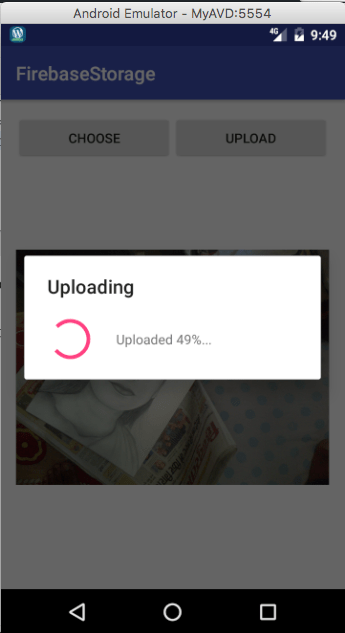
- You can also check the firebase storage to check whether the file is uploaded or not.
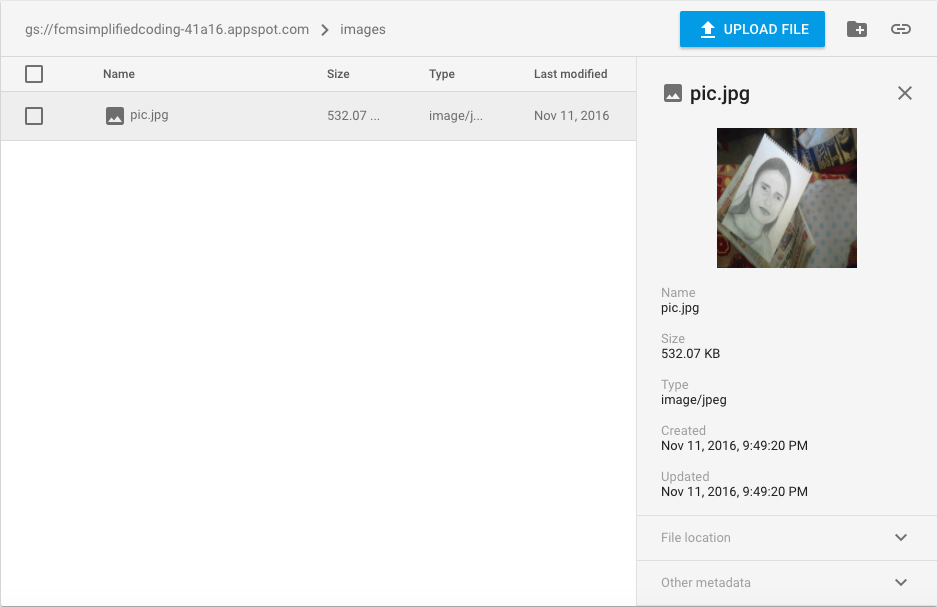
33.14. Retrieving Files from Firebase Storage
- Now we will create a new activity where we display all the uploaded images with labels.
- So create a new activity named ShowImagesActivity and inside the layout file of this activity we will create a RecyclerView.
33.15. Adding RecyclerView and CardView
- First we need to add dependencies for RecyclerView and CardView.
- Go to File -> Project Structure and go to dependencies tab. Here click on plus icon and select Library dependency.
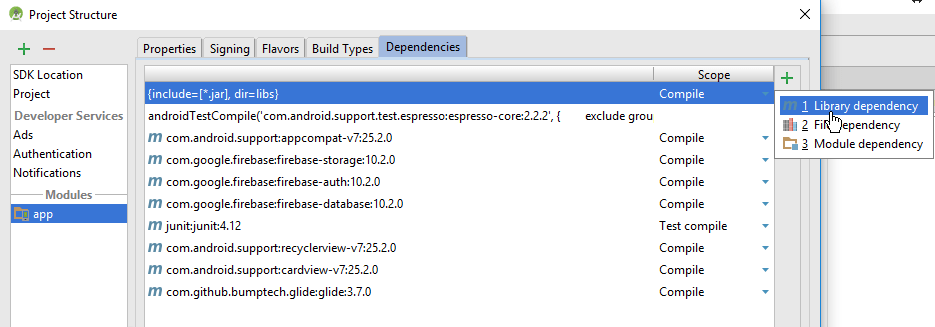 c1
c1 - Now here you need to find and add RecyclerView and CardView.
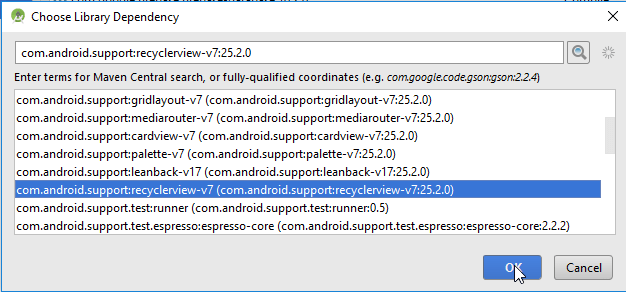 c2
c2
Now sync your project.
33.16. Adding Glide
- We also need to add Glide Library. As we need to fetch images from the URL and for this I will be using Glide Library.
- So just modify dependencies block of your app level build.gradle file as below.
dependencies {
    compile fileTree(include: ['*.jar'], dir: 'libs')
    androidTestCompile('com.android.support.test.espresso:espresso-core:2.2.2', {
        exclude group: 'com.android.support', module: 'support-annotations'
    })
    compile 'com.android.support:appcompat-v7:25.2.0'
    compile 'com.google.firebase:firebase-storage:10.2.0'
    compile 'com.google.firebase:firebase-auth:10.2.0'
    compile 'com.google.firebase:firebase-database:10.2.0'
    testCompile 'junit:junit:4.12'
    compile 'com.android.support:recyclerview-v7:25.2.0'
    compile 'com.android.support:cardview-v7:25.2.0'

    //adding glid library
    compile 'com.github.bumptech.glide:glide:3.7.0'
}
Now sync the project with gradle.
33.17. Creating RecyclerView Layout
- Now we will design the layout for our RecyclerView. It will contain an ImageView and a TextView inside a CardView. So create a new layout resource file named layout_images.xml.
<?xml version="1.0" encoding="utf-8"?>
<LinearLayout xmlns:android="http://schemas.android.com/apk/res/android"
    android:layout_width="match_parent"
    android:layout_height="wrap_content"
    android:orientation="vertical">

    <android.support.v7.widget.CardView
        android:layout_width="match_parent"
        android:layout_height="wrap_content"
        android:layout_margin="8dp"
        android:padding="8dp">

        <RelativeLayout
            android:layout_width="match_parent"
            android:layout_height="wrap_content"
            android:minHeight="100dp">


            <TextView
                android:id="@+id/textViewName"
                android:layout_width="match_parent"
                android:layout_height="wrap_content"
                android:text="Name"
                android:textAlignment="center" />

            <ImageView
                android:id="@+id/imageView"
                android:layout_width="match_parent"
                android:layout_height="wrap_content"
                android:layout_below="@id/textViewName" />

        </RelativeLayout>

    </android.support.v7.widget.CardView>
</LinearLayout>
So our layout for RecyclerView is ready. Now we will create an Adapter.
33.18. Creating RecyclerView Adapter
Create a class named MyAdapter.java and write the following code.
package net.simplifiedcoding.firebaseupload;

import android.content.Context;
import android.support.v7.widget.RecyclerView;
import android.view.LayoutInflater;
import android.view.View;
import android.view.ViewGroup;
import android.widget.ImageView;
import android.widget.TextView;

import com.bumptech.glide.Glide;

import java.util.List;

/**
 * Created by Belal on 2/23/2017.
 */

public class MyAdapter extends RecyclerView.Adapter<MyAdapter.ViewHolder> {

    private Context context;
    private List<Upload> uploads;

    public MyAdapter(Context context, List<Upload> uploads) {
        this.uploads = uploads;
        this.context = context;
    }

    @Override
    public ViewHolder onCreateViewHolder(ViewGroup parent, int viewType) {
        View v = LayoutInflater.from(parent.getContext())
                .inflate(R.layout.layout_images, parent, false);
        ViewHolder viewHolder = new ViewHolder(v);
        return viewHolder;
    }

    @Override
    public void onBindViewHolder(ViewHolder holder, int position) {
        Upload upload = uploads.get(position);

        holder.textViewName.setText(upload.getName());

        Glide.with(context).load(upload.getUrl()).into(holder.imageView);
    }

    @Override
    public int getItemCount() {
        return uploads.size();
    }

    class ViewHolder extends RecyclerView.ViewHolder {

        public TextView textViewName;
        public ImageView imageView;

        public ViewHolder(View itemView) {
            super(itemView);

            textViewName = (TextView) itemView.findViewById(R.id.textViewName);
            imageView = (ImageView) itemView.findViewById(R.id.imageView);
        }
    }
}
- Now come inside layout file of this ShowImagesActivity and add a RecyclerView.
<?xml version="1.0" encoding="utf-8"?>
<RelativeLayout xmlns:android="http://schemas.android.com/apk/res/android"
    xmlns:tools="http://schemas.android.com/tools"
    android:id="@+id/activity_show_images"
    android:layout_width="match_parent"
    android:layout_height="match_parent"
    android:paddingBottom="@dimen/activity_vertical_margin"
    android:paddingLeft="@dimen/activity_horizontal_margin"
    android:paddingRight="@dimen/activity_horizontal_margin"
    android:paddingTop="@dimen/activity_vertical_margin"
    tools:context="net.simplifiedcoding.firebaseupload.ShowImagesActivity">

    <android.support.v7.widget.RecyclerView
        android:id="@+id/recyclerView"
        android:layout_width="match_parent"
        android:layout_height="wrap_content">

    </android.support.v7.widget.RecyclerView>

</RelativeLayout>
Now write the following code inside ShowImagesActivity.java
ShowImagesActivityJava
package net.simplifiedcoding.firebaseupload;

import android.app.ProgressDialog;
import android.support.v7.app.AppCompatActivity;
import android.os.Bundle;
import android.support.v7.widget.LinearLayoutManager;
import android.support.v7.widget.RecyclerView;
import android.util.Log;
import android.widget.Toast;

import com.google.firebase.database.DataSnapshot;
import com.google.firebase.database.DatabaseError;
import com.google.firebase.database.DatabaseReference;
import com.google.firebase.database.FirebaseDatabase;
import com.google.firebase.database.ValueEventListener;

import java.util.ArrayList;
import java.util.List;

public class ShowImagesActivity extends AppCompatActivity {
    //recyclerview object
    private RecyclerView recyclerView;

    //adapter object
    private RecyclerView.Adapter adapter;

    //database reference
    private DatabaseReference mDatabase;

    //progress dialog
    private ProgressDialog progressDialog;

    //list to hold all the uploaded images
    private List<Upload> uploads;

    @Override
    protected void onCreate(Bundle savedInstanceState) {
        super.onCreate(savedInstanceState);
        setContentView(R.layout.activity_show_images);


        recyclerView = (RecyclerView) findViewById(R.id.recyclerView);
        recyclerView.setHasFixedSize(true);
        recyclerView.setLayoutManager(new LinearLayoutManager(this));


        progressDialog = new ProgressDialog(this);

        uploads = new ArrayList<>();

        //displaying progress dialog while fetching images
        progressDialog.setMessage("Please wait...");
        progressDialog.show();
        mDatabase = FirebaseDatabase.getInstance().getReference(Constants.DATABASE_PATH_UPLOADS);

        //adding an event listener to fetch values
        mDatabase.addValueEventListener(new ValueEventListener() {
            @Override
            public void onDataChange(DataSnapshot snapshot) {
                //dismissing the progress dialog
                progressDialog.dismiss();

                //iterating through all the values in database
                for (DataSnapshot postSnapshot : snapshot.getChildren()) {
                    Upload upload = postSnapshot.getValue(Upload.class);
                    uploads.add(upload);
                }
                //creating adapter
                adapter = new MyAdapter(getApplicationContext(), uploads);

                //adding adapter to recyclerview
                recyclerView.setAdapter(adapter);
            }

            @Override
            public void onCancelled(DatabaseError databaseError) {
                progressDialog.dismiss();
            }
        });

    }
}
- Thats it now just run your application and you will see all the fetched images in the next activity.