23. Broadcast Receivers
In this chapter you learn about broadcasts and broadcast receivers. Broadcasts are messaging components used for communicating across different apps, and also with the Android system, when an event of interest occurs. Broadcast receivers are the components in your Android app that listen for these events and respond accordingly.
23.1. Broadcasts
Broadcasts are messages that the Android system and Android apps send when events occur that might affect the functionality of other apps. For example, the Android system sends an event when the system boots up, when power is connected or disconnected, and when headphones are connected or disconnected. Your Android app can also broadcast events, for example when new data is downloaded.
In general, broadcasts are messaging components used for communicating across apps when events of interest occur. There are two types of broadcasts:
- System broadcasts are delivered by the system.
- Custom broadcasts are delivered by your app.
23.2. System broadcasts
A system broadcast is a message that the Android system sends when a system event occurs. System broadcasts are wrapped in Intent objects. The intent object’s action field contains event details such as android.intent.action.HEADSET_PLUG, which is sent when a wired headset is connected or disconnected. The intent can also contain more data about the event in its extra field, for example a boolean extra indicating whether a headset is connected or disconnected.
Examples:
- When the device boots, the system broadcasts a system Intent with the action ACTION_BOOT_COMPLETED.
- When the device is disconnected from external power, the system sends a system Intent with the action field ACTION_POWER_DISCONNECTED.
System broadcasts aren’t targeted at specific recipients. Interested apps must register a component to “listen” for these events. This listening component is called a broadcast receiver.
As the Android system evolves, significant changes are made to improve the system’s performance. For example, starting from Android 7.0, the system broadcast actions ACTION_NEW_PICTURE and ACTION_NEW_VIDEO are not supported. Apps can no longer receive broadcasts about these actions, regardless of the targetSDK version on the device. This is because device cameras take pictures and record videos frequently, so sending a system broadcast every time one of these actions occurred would strain a device’s memory and battery.
To get the complete list of broadcast actions that the system can send for a particular SDK version, check the broadcast_actions.txt file in your SDK folder, at the following path: Android/sdk/platforms/android-xx/data, where xx is the SDK version.
23.3. Custom broadcasts
Custom broadcasts are broadcasts that your app sends out. Use a custom broadcast when you want your app to take an action without launching an activity. For example, use a custom broadcast when you want to let other apps know that data has been downloaded to the device and is available for them to use. More than one broadcast receiver can be registered to receive your broadcast.
To create a custom broadcast, define a custom Intent action.
Note: When you specify the action for the Intent, use your unique package name (for example com.example.myproject) to make sure that your intent doesn’t conflict with an intent that is broadcast from a different app or from the Android system.
There are three ways to deliver a custom broadcast:
- For a normal broadcast, pass the intent to sendBroadcast().
- For an ordered broadcast, pass the intent to sendOrderedBroadcast().
- For a local broadcast, pass the intent to LocalBroadcastManager.sendBroadcast().
Normal, ordered, and local broadcasts are described in more detail below.
23.4. Normal broadcasts
The sendBroadcast() method sends broadcasts to all the registered receivers at the same time, in an undefined order. This is called a normal broadcast. A normal broadcast is the most efficient way to send a broadcast. With normal broadcasts, receivers can’t propagate the results among themselves, and they can’t cancel the broadcast.
The following method sends a normal broadcast to all interested broadcast receivers:
public void sendBroadcast() {
   Intent intent = new Intent();
   intent.setAction("com.example.myproject.ACTION_SHOW_TOAST");
   // Set the optional additional information in extra field.
   intent.putExtra("data","This is a normal broadcast");
   sendBroadcast(intent);
}
23.5. Ordered broadcasts
To send a broadcast to one receiver at a time, use the sendOrderedBroadcast() method:
- The android:priority attribute that’s specified in the intent filter determines the order in which the broadcast is sent.
- If more than one receiver with same priority is present, the sending order is random.
- The Intent is propagated from one receiver to the next.
- During its turn, a receiver can update the Intent, or it can cancel the broadcast. (If the receiver cancels the broadcast, the Intent can’t be propagated further.)
For example, the following method sends an ordered broadcast to all interested broadcast receivers:
public void sendOrderedBroadcast() {
   Intent intent = new Intent();

   // Set a unique action string prefixed by your app package name.
   intent.setAction("com.example.myproject.ACTION_NOTIFY");
   // Deliver the Intent.
   sendOrderedBroadcast(intent);
}
23.6. Local broadcasts
If you don’t need to send broadcasts to a different app, use the LocalBroadcastManager.sendBroadcast() method, which sends broadcasts to receivers within your app. This method is efficient, because it doesn’t involve interprocess communication. Also, using local broadcasts protects your app against some security issues.
To send a local broadcast:
- To get an instance of LocalBroadcastManager, call getInstance() and pass in the application context.
- Call sendBroadcast() on the instance. Pass in the intent that you want to broadcast.
LocalBroadcastManager.getInstance(this).sendBroadcast(customBroadcastIntent);
23.7. Code Lab for Broad cast Reciver
23.8. App overview
The PowerReceiver app will register a BroadcastReceiver that displays a toast message when the device is connected or disconnected from power. The app will also send and receive a custom broadcast to display a different toast message.

23.9. Task 1. Set up the PowerReceiver project
23.9.1. 1.1 Create the project
- In Android Studio, create a new Java project called PowerReceiver. Accept the default options and use the Empty Activity template.
- To create a new broadcast receiver, select the package name in the Android Project View and navigate to File > New > Other > Broadcast Receiver.
- Name the class CustomReceiver. Make sure that Java is selected as the source language, and that Exported and Enabled are selected. Exported allows your broadcast receiver to receive broadcasts from outside your app. Enabled allows the system to instantiate the receiver.
23.10. Register your receiver for system broadcasts
A system broadcast is a message that the Android system sends when a system event occurs. Each system broadcast is wrapped in an Intent object:
- The intent’s action field contains event details such as android.intent.action.HEADSET_PLUG, which is sent when a wired headset is connected or disconnected.
- The intent can contain other data about the event in its extra field, for example a boolean extra indicating whether a headset is connected or disconnected.
Apps can register to receive specific broadcasts. When the system sends a broadcast, it routes the broadcast to apps that have registered to receive that particular type of broadcast.
A BroadcastReceiver is either a static receiver or a dynamic receiver, depending on how you register it:
- To register a receiver statically, use the
element in your AndroidManifest.xml file. Static receivers are also called manifest-declared receivers. - To register a receiver dynamically, use the app context or activity context. The receiver receives broadcasts as long as the registering context is valid, meaning as long as the corresponding app or activity is running. Dynamic receivers are also called context-registered receivers.
For this app, you’re interested in two system broadcasts, ACTION_POWER_CONNECTED and ACTION_POWER_DISCONNECTED. The Android system sends these broadcasts when the device’s power is connected or disconnected.
Starting from Android 8.0 (API level 26 and higher), you can’t use static receivers to receive most Android system broadcasts, with some exceptions. So for this task, you use dynamic receivers:
- (Optional) Navigate to your AndroidManifest.xml file. Android Studio has generated a
element, but you don’t need it, because you can’t use a static receiver to listen for power-connection system broadcasts. Delete the entire element. - In MainActivity.java, create a CustomReceiver object as a member variable and initialize it.
private CustomReceiver mReceiver = new CustomReceiver();
23.10.1. Create an intent filter with Intent actions
Intent filters specify the types of intents a component can receive. They are used in filtering out the intents based on Intent values like action and category.
- In MainActivity.java, at the end of the onCreate() method, create an IntentFilter object.
IntentFilter filter = new IntentFilter();
When the system receives an Intent as a broadcast, it searches the broadcast receivers based on the action value specified in the IntentFilter object. 2. In MainActivity.java, at the end of onCreate(), add the actions ACTION_POWER_CONNECTED and ACTION_POWER_DISCONNECTED to the IntentFilter object.
filter.addAction(Intent.ACTION_POWER_DISCONNECTED);
filter.addAction(Intent.ACTION_POWER_CONNECTED);
23.10.2. Register and unregister the receiver
- In MainActivity.java, at the end of onCreate(), register your receiver using the MainActivity context. Your receiver is active and able to receive broadcasts as long as your MainActivity is running.
// Register the receiver using the activity context.
this.registerReceiver(mReceiver, filter);
- In MainActivity.java, override the onDestroy() method and unregister your receiver. To save system resources and avoid leaks, dynamic receivers must be unregistered when they are no longer needed or before the corresponding activity or app is destroyed, depending on the context used.
@Override
   protected void onDestroy() {
       //Unregister the receiver
       this.unregisterReceiver(mReceiver);
       super.onDestroy();
   }
23.10.3. Implement onReceive() in your BroadcastReceiver
When a broadcast receiver intercepts a broadcast that it’s registered for, the Intent is delivered to the receiver’s onReceive() method.
In CustomReceiver.java, inside the onReceive() method, implement the following steps:
- Delete the entire onReceive() method implementation, including the UnsupportedOperationException code.
- Get the Intent action from the intent parameter and store it in a String variable called intentAction.
@Override
public void onReceive(Context context, Intent intent) {
   String intentAction = intent.getAction();
}
- Create a switch statement with the intentAction string. (Before using intentAction, do a null check on it.) Display a different toast message for each action your receiver is registered for.
if (intentAction != null) {
   String toastMessage = "unknown intent action";
   switch (intentAction){
       case Intent.ACTION_POWER_CONNECTED:
           toastMessage = "Power connected!";
           break;
       case Intent.ACTION_POWER_DISCONNECTED:
           toastMessage = "Power disconnected!";
           break;
   }

  //Display the toast.
  Toast.makeText(context, toastMessage, Toast.LENGTH_SHORT).show();
}
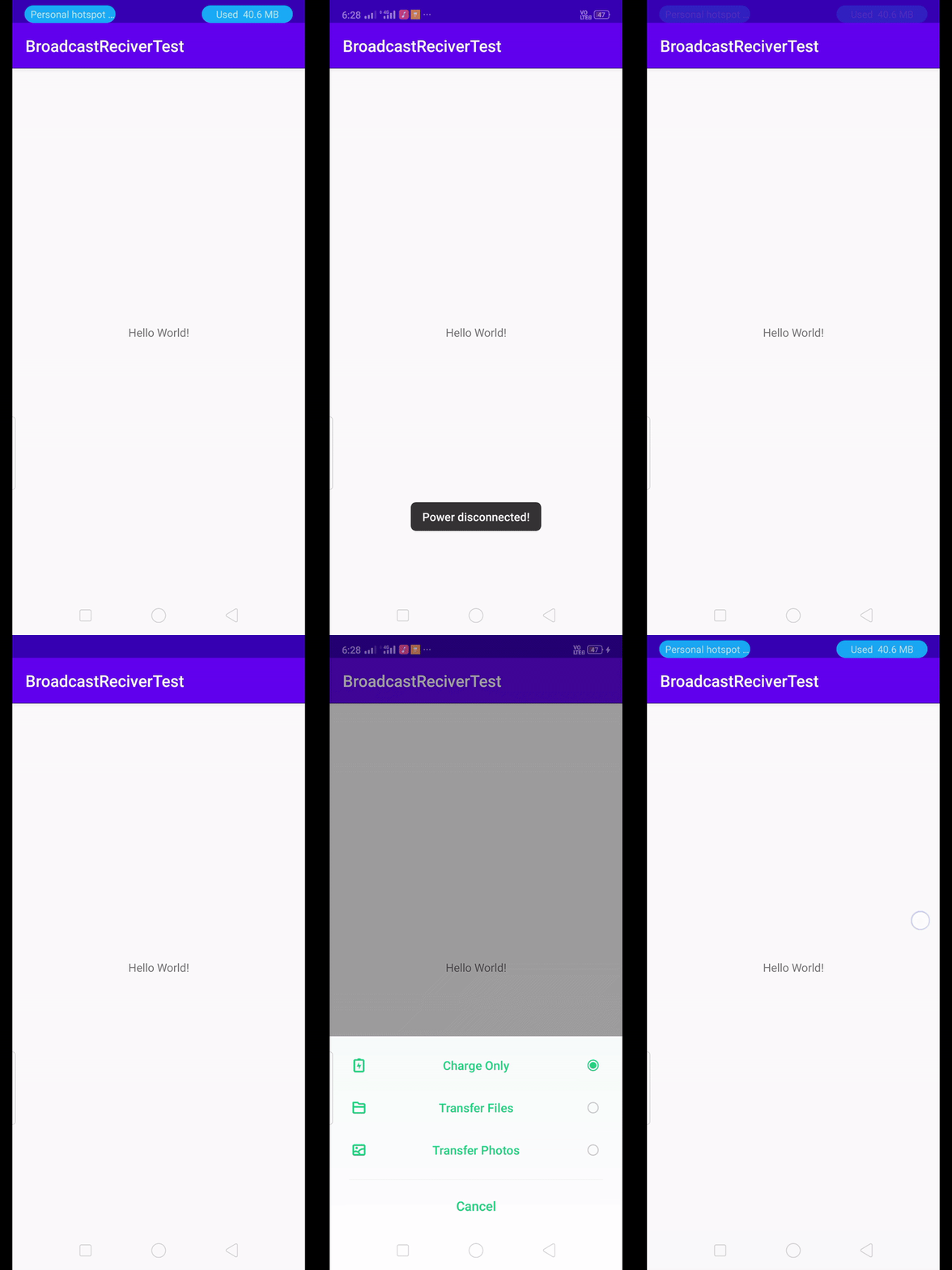
- Run your app. After the app is running, connect or disconnect your device’s power supply. A Toast is displayed each time you connect or disconnect the power supply, as long as your Activity is running.
23.11. Output
23.12. Task 2. Send and receive a custom broadcast
In addition to responding to system broadcasts, your app can send and receive custom broadcasts. Use a custom broadcast when you want your app to take an action without launching an activity, for example when you want to let other apps know that data has been downloaded to the device.
23.12.1. Define your custom broadcast action string
Both the sender and receiver of a custom broadcast must agree on a unique action string for the Intent being broadcast. It’s a common practice to create a unique action string by prepending your action name with your app’s package name.
One of the simplest ways to get your app’s package name is to use BuildConfig.APPLICATION_ID, which returns the applicationId property’s value from your module-level build.gradle file.
- Create a constant member variable in both your MainActivity and your CustomReceiver class. You’ll use this variable as the broadcast Intent action.
private static final String ACTION_CUSTOM_BROADCAST =
BuildConfig.APPLICATION_ID + ".ACTION_CUSTOM_BROADCAST";
23.12.2. Add a “Send Custom Broadcast” button
- In your activity_main.xml layout file, replace the Hello World Textview with a Button that has the following attributes:
<Button
   android:id = "@+id/sendBroadcast"
   android:layout_width="wrap_content"
   android:layout_height="wrap_content"
   android:text="Send Custom Broadcast"
   android:onClick="sendCustomBroadcast"
   app:layout_constraintBottom_toBottomOf="parent"
   app:layout_constraintLeft_toLeftOf="parent"
   app:layout_constraintRight_toRightOf="parent"
   app:layout_constraintTop_toTopOf="parent" />
- Extract the string resource. The sendCustomBroadcast() method will be the click-event handler for the button. To create a stub for sendCustomBroadcast() in Android Studio:
- Click the yellow highlighted sendCustomBroadcast method name. A red light bulb appears on the left.
- Click the red light bulb and select Create ‘sendCustomBroadcast(View)’ in ‘MainActivity’.
23.12.3. Implement sendCustomBroadcast()
Because this broadcast is meant to be used solely by your app, use LocalBroadcastManager to manage the broadcast. LocalBroadcastManager is a class that allows you to register for and send broadcasts that are of interest to components within your app.
By keeping broadcasts local, you ensure that your app data isn’t shared with other Android apps. Local broadcasts keep your information more secure and maintain system efficiency.
In MainActivity.java, inside the sendCustomBroadcast() method, implement the following steps:
- Create a new Intent, with your custom action string as the argument.
Intent customBroadcastIntent = new Intent(ACTION_CUSTOM_BROADCAST);
- After the custom Intent declaration, send the broadcast using the LocalBroadcastManager class:
LocalBroadcastManager.getInstance(this).sendBroadcast(customBroadcastIntent);
23.12.4. Register and unregister your custom broadcast
Registering for a local broadcast is similar to registering for a system broadcast, which you do using a dynamic receiver. For broadcasts sent using LocalBroadcastManager, static registration in the manifest is not allowed.
If you register a broadcast receiver dynamically, you must unregister the receiver when it is no longer needed. In your app, the receiver only needs to respond to the custom broadcast when the app is running, so you can register the action in onCreate() and unregister it in onDestroy().
- In MainActivity.java, inside onCreate() method, get an instance of LocalBroadcastManager and register your receiver with the custom Intent action:
LocalBroadcastManager.getInstance(this)
             .registerReceiver(mReceiver,
                          new IntentFilter(ACTION_CUSTOM_BROADCAST));
- In MainActivity.java, inside the onDestroy() method, unregister your receiver from the LocalBroadcastManager:
LocalBroadcastManager.getInstance(this)
          .unregisterReceiver(mReceiver);
23.12.5. Respond to the custom broadcast
- In CustomReceiver.java, inside the onReceive() method, add another case statement in the switch block for the custom Intent action. Use “Custom Broadcast Received” as the text for the toast message.
case ACTION_CUSTOM_BROADCAST:
   toastMessage = "Custom Broadcast Received";
   break;
- Run your app and tap the Send Custom Broadcast button to send a custom broadcast. Your receiver (CustomReceiver) displays a toast message.
.gif)