39. How can I set an icon for my Android application?
 appicon
If you intend on your application being available on a large range of devices, you should place your application icon into the different res/drawable… folders provided. In each of these folders, you should include a 48dp sized icon:
- drawable-ldpi (120 dpi, Low density screen) - 36px x 36px
- drawable-mdpi (160 dpi, Medium density screen) - 48px x 48px
- drawable-hdpi (240 dpi, High density screen) - 72px x 72px
- drawable-xhdpi (320 dpi, Extra-high density screen) - 96px x 96px
- drawable-xxhdpi (480 dpi, Extra-extra-high density screen) - 144px x 144px
- drawable-xxxhdpi (640 dpi, Extra-extra-extra-high density screen) - 192px x 192px
You may then define the icon in your AndroidManifest.xml file as such
<application android:icon="@drawable/icon_name" android:label="@string/app_name" >
....
</application>
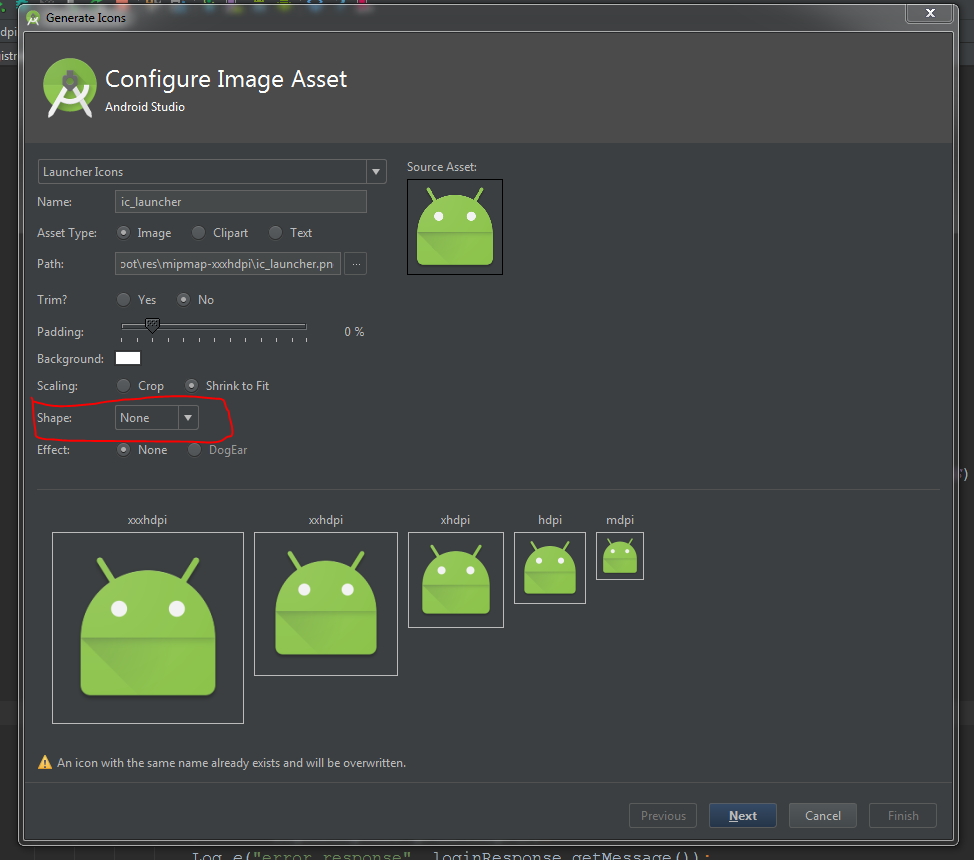
Now simply go to menu File → New → Image Asset. This will open a new dialogue and then make sure Launcher Icons is selected (Which it is by default) and then browse to the directory of your icon (it doesn’t have to be in the project resources) and then once selected make sure other settings are to your liking and hit done.
Now all resolutions are saved into their respective folders, and you don’t have to worry about copying it yourself or using tools, etc.
 imageselect
Don’t forget “Shape - none” for a transparent background.
Put your images in mipmap folder and set in manifest file… like as
Define the icon for android application
<application android:icon="drawable resource">
....
</application>
39.1. If your app available across large range of devices
You should create separate icons for all generalized screen densities, including low-, medium-, high-, and extra-high-density screens. This ensures that your icons will display properly across the range of devices on which your application can be installed…
 c1
c1
39.2. Size & Format
Launcher icons should be 32-bit PNGs with an alpha channel for transparency. The finished launcher icon dimensions corresponding to a given generalized screen density are shown in the table below.
 c2
c2
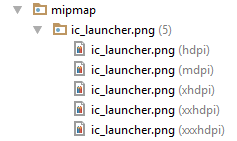
39.3. Place icon in mipmap or drawable folder
android:icon="@drawable/icon_name" or android:icon="@mipmap/icon_name"
Define the icon for android application
If your app available across large range of devices You should create separate icons for all generalized screen densities, including low-, medium-, high-, and extra-high-density screens.This ensures that your icons will display properly across the range of devices on which your application can be installed…
Place icon in mipmap or drawable folder android:icon=”@drawable/icon_name” or android:icon=”@mipmap/icon_name”
If you are building different versions of your app for different densities, you should know about the “mipmap” resource directory. This is exactly like “drawable” resources, except it does not participate in density stripping when creating the different apk targets.
For launcher icons, the AndroidManifest.xml file must reference the mipmap/ location
<application android:name="ApplicationTitle"
        android:label="@string/app_label"
        android:icon="@mipmap/ic_launcher" >

         ```